
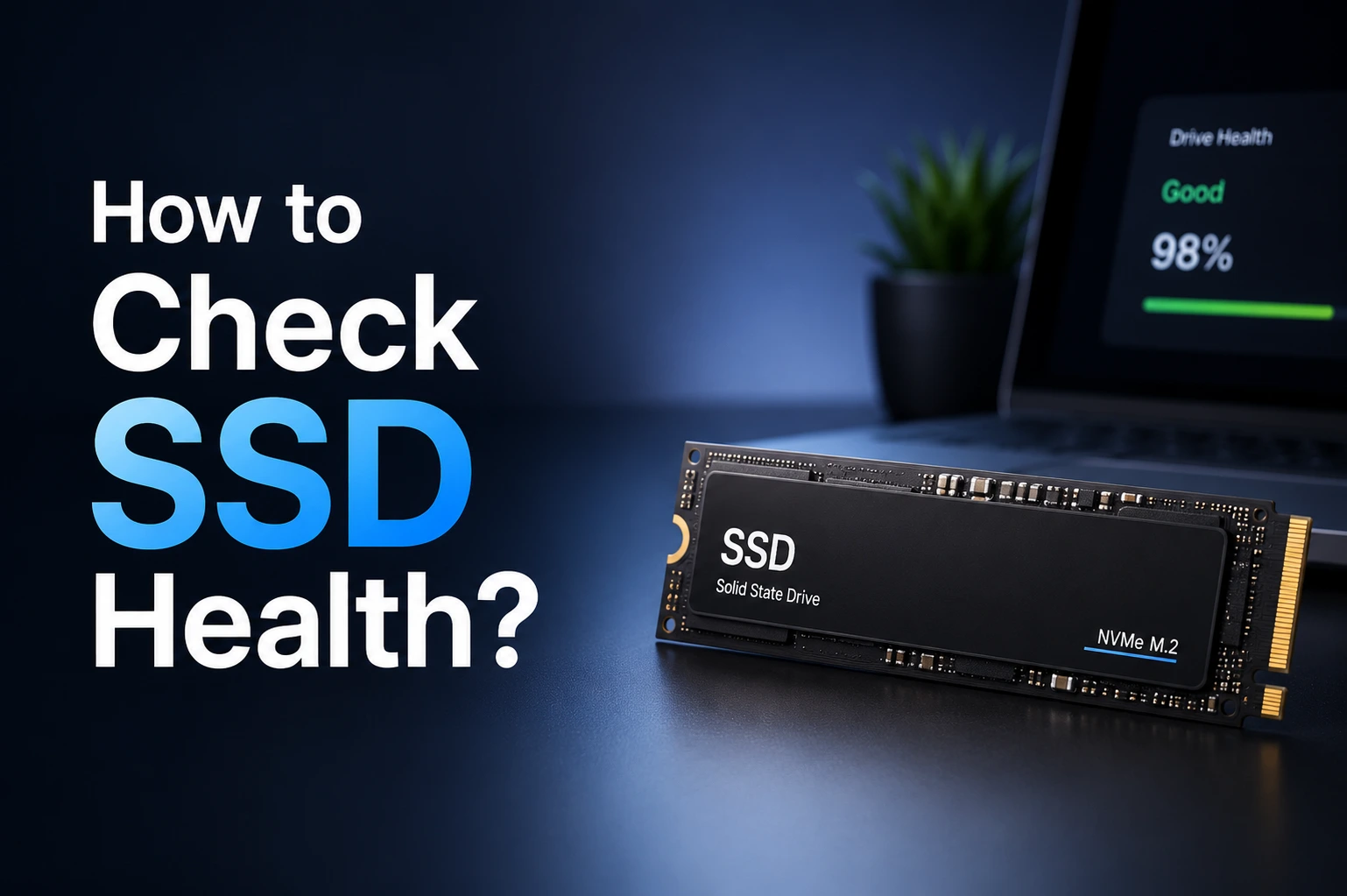
If you’re wondering how to check SSD health, you’re not alone. Solid State Drives (SSDs) are faster and more reliable than traditional hard drives, but they still wear out over time. Monitoring your SSD’s health helps you detect problems early, protect your files, and maintain your computer’s performance.
Whether you use Windows 11 or Windows 10, there are several easy ways to check your SSD’s condition. In this guide, you’ll learn the best methods, understand SMART data, and discover free tools that provide detailed health reports.
Quick Answer
The easiest way to check SSD health is by using Windows Command Prompt or PowerShell.
Open Command Prompt and type:
wmic diskdrive get statusIf the result shows OK, your SSD is working normally. For more detailed information, use tools like CrystalDiskInfo or your SSD manufacturer’s utility.
Why You Should Check SSD Health
Checking your SSD regularly helps you:
- Prevent unexpected drive failure
- Protect important data
- Improve system performance
- Monitor SSD lifespan
- Detect hardware issues early
- Plan backups before data loss occurs
Although modern SSDs are designed to last for years, no storage device lasts forever.
What Is SSD Health?
SSD health refers to the overall condition and remaining lifespan of your Solid State Drive. Modern SSDs include SMART (Self-Monitoring, Analysis, and Reporting Technology), which tracks important information such as:
- Remaining lifespan
- Read/write errors
- Temperature
- Total bytes written
- Power-on hours
- Bad blocks
By monitoring these values, you can determine whether your SSD is healthy or nearing the end of its life.
Check SSD Health Using Command Prompt
Windows includes a built-in tool that quickly checks your drive status.
Steps
- Press Windows + S
- Search for Command Prompt
- Run as Administrator
- Enter:
wmic diskdrive get statusResults
- OK – SSD is healthy
- Pred Fail – The drive may fail soon
- Unknown – Windows cannot determine the health status
This method is quick but provides only basic information.
Check SSD Health Using PowerShell
PowerShell provides a more detailed view of storage devices.
Steps
- Open PowerShell as Administrator.
- Run:
Get-PhysicalDiskCheck the HealthStatus column.
Possible values include:
- Healthy
- Warning
- Unhealthy
Use CrystalDiskInfo
CrystalDiskInfo is one of the most trusted free SSD monitoring applications.
It displays:
- SSD health percentage
- Temperature
- SMART attributes
- Firmware version
- Power-on hours
- Total host writes
- Read/write errors
If your SSD shows Good (90–100%), it is generally in excellent condition.
Use Manufacturer Software
Most SSD manufacturers provide free software for monitoring and optimizing SSD performance.
Popular tools include:
- Samsung Magician
- WD Dashboard
- Crucial Storage Executive
- Kingston SSD Manager
- Intel Memory and Storage Tool
These applications can also update firmware and improve performance.
Check SMART Status
SMART (Self-Monitoring, Analysis, and Reporting Technology) continuously monitors SSD health.
Important SMART values include:
- Health Percentage
- Temperature
- Reallocated Blocks
- Total Host Writes
- Power-On Hours
Monitoring SMART attributes helps identify problems before they become serious
Check SSD Health Using Windows Settings
Windows 11 also provides basic drive health information.
Go to:
Settings → System → Storage → Advanced Storage Settings → Disks & VolumesSelect your SSD to view available health information.
Run CHKDSK
If you suspect file system errors, run:
chkdsk C: /fReplace C: with your SSD drive letter if necessary.
CHKDSK repairs logical file system errors but does not measure SSD lifespan.
How to Understand SSD Health Percentage
Most SSD monitoring tools display a health percentage.
| SSD Health | Status |
|---|---|
| 100–90% | Excellent |
| 89–70% | Very Good |
| 69–50% | Average |
| Below 50% | Backup your files |
| Below 20% | Replace the SSD soon |
A declining health percentage indicates normal wear over time.
Signs Your SSD Is Failing
Common warning signs include:
- Slow boot times
- Frequent system crashes
- File corruption
- Read/write errors
- Blue Screen of Death (BSOD)
- Windows freezing
- SSD not detected by BIOS
- Applications crashing unexpectedly
If you notice these symptoms, check your SSD immediately and back up important data.
How to Improve SSD Health
You can extend your SSD’s lifespan with these best practices:
- Keep at least 20% of storage free.
- Enable TRIM.
- Update SSD firmware.
- Avoid unnecessary large file transfers.
- Keep Windows updated.
- Avoid sudden power loss.
- Monitor SSD temperature.
- Back up important files regularly.
How Long Does an SSD Last?
The average SSD lasts between 5 and 10 years, depending on:
- Daily usage
- Total data written (TBW)
- SSD quality
- Storage capacity
- Operating temperature
For normal home users, SSDs typically provide many years of reliable service.
Best Free SSD Health Checker Tools
| Tool | Free | Best For |
| CrystalDiskInfo | Yes | Overall SSD monitoring |
| Samsung Magician | Yes | Samsung SSDs |
| WD Dashboard | Yes | Western Digital SSDs |
| Crucial Storage Executive | Yes | Crucial SSDs |
| Kingston SSD Manager | Yes | Kingston SSDs |
(FAQS)
How do I check SSD health in Windows 11?
Use Command Prompt, PowerShell, CrystalDiskInfo, or your SSD manufacturer’s software to monitor health and SMART data.
What is a good SSD health percentage?
Anything above 90% is considered excellent. Between 70% and 90% is still healthy for most users.
Can an SSD fail suddenly?
Yes. Unlike traditional hard drives, SSDs may fail without obvious warning. Regular backups are highly recommended.
Is CrystalDiskInfo safe?
Yes. CrystalDiskInfo is widely used and only reads SMART data without modifying your SSD.
How often should I check SSD health?
For most users, checking once a month is sufficient. Heavy users should monitor SSD health every two weeks.
Conclusion
Knowing how to check SSD health is an important part of maintaining your computer. Regular health checks allow you to identify issues early, protect valuable data, and maximize your SSD’s lifespan. Windows provides built-in tools like Command Prompt and PowerShell for quick checks, while CrystalDiskInfo and manufacturer utilities offer detailed SMART reports and health percentages.
Reade More :